Optimizing checkout forms with HTML autocomplete tokens
Properly configured HTML autocomplete attributes significantly increase form conversion rates by allowing password managers and browsers to autofill user data. This article details the specific autocomplete tokens required for complex forms like e-commerce checkouts.
Paul Radford — Full-Stack Developer & Editor. Paul is a full-stack developer and editor of template.tips. Articles here are AI-drafted and reviewed by Paul, who knows the code well enough to catch what's wrong and cut the hype.
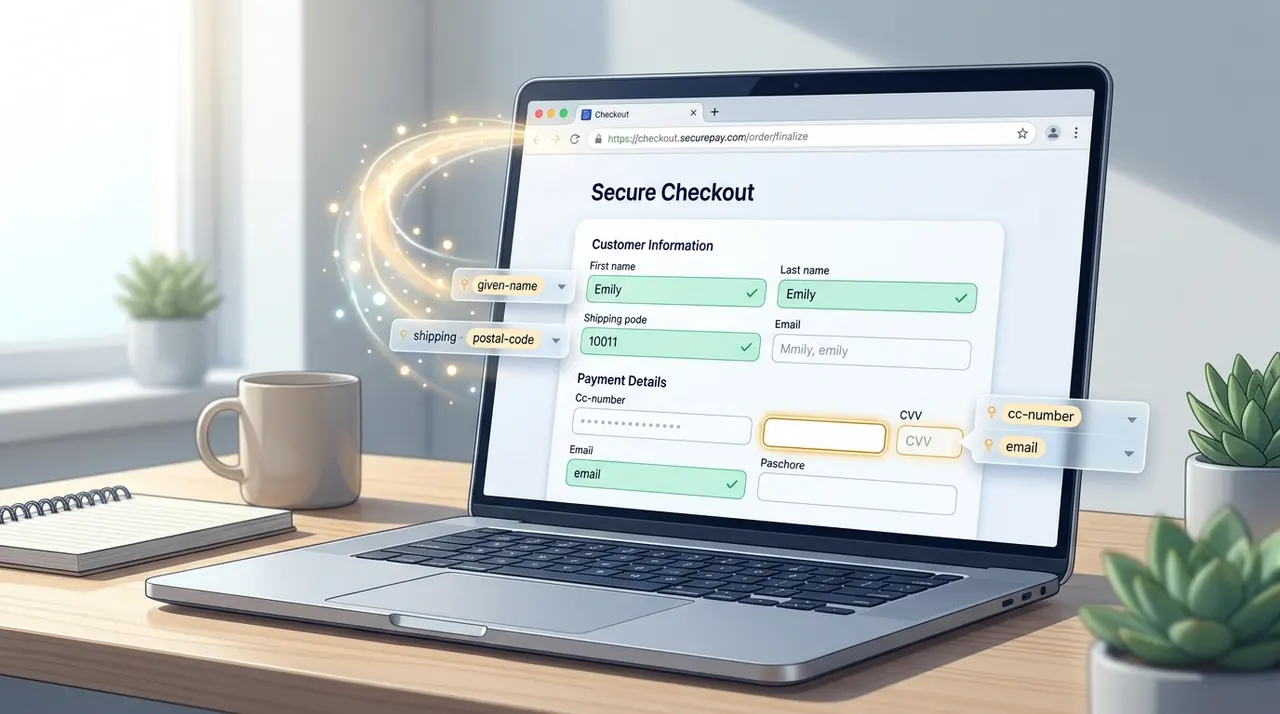
Optimizing checkout forms with HTML autocomplete tokens
The autocomplete attribute tells browsers and password managers exactly what kind of data a form field expects, using a standardized vocabulary of tokens like given-name, shipping postal-code, or cc-number. Set it correctly on every field in a checkout form and you get instant, accurate autofill instead of the browser guessing from placeholder text or name attributes. Guessing is where abandoned carts come from.
Why this matters more than it looks like it should
Checkout forms are where conversion dies. Every extra field a user has to type by hand is a chance for them to get distracted, mistype a card number, or just quit. Browsers and password managers already have the user's name, address, and payment details saved. The only reason they fail to autofill a field is that your markup didn't tell them which field is which.
The autocomplete attribute is the API for that. It's been part of the HTML spec for years, it has excellent support across Chrome, Safari, Firefox, and Edge, and it costs you nothing to implement correctly. Yet a huge number of production checkout forms still use generic id="field1" naming and no autocomplete tokens at all, which forces the browser's heuristics to take a guess. Sometimes they guess right. Often they don't, especially on multi-step checkouts where shipping and billing addresses live in separate <form> sections or even separate page loads.
The WHATWG HTML spec's autofill section defines the full token list and the grouping rules. The MDN autocomplete attribute reference is the more practical day-to-day reference, and it's the one you'll actually bookmark.
What exactly does a browser do with these tokens?
When a browser parses a form, it builds an "autofill field" for each input that has a recognized autocomplete value (or, failing that, a value it can infer heuristically from the name, id, or placeholder). Password managers like 1Password and Bitwarden, and the browser's native autofill, both read these tokens to decide what to suggest and where to insert it.
The token isn't just a hint for autofill on return visits. It also controls what gets offered the first time. A credit card field tagged autocomplete="cc-number" triggers Chrome's "use a saved card" dropdown even for a brand-new visitor who's never been to your site, because the card is stored at the browser or OS level, not per-site.
The token syntax: it's not just one word
Full autocomplete values can have up to six space-separated sub-tokens, though in practice checkout forms mostly need three or fewer:
1autocomplete="[section-*] [shipping|billing] [field-name]"- section-* is optional and used to disambiguate repeated field groups (more on this below).
- shipping or billing tells the browser which address or payment context the field belongs to.
- The field name itself (given-name, postal-code, cc-number, etc.) is mandatory.
Order matters: section comes first, then the shipping/billing qualifier, then the field name. Get the order wrong and the browser falls back to treating the whole value as invalid.
Naming fields: the basics most forms still get wrong
Names are the first thing every checkout form asks for, and they're also where I see the most inconsistency. If you split first and last name into separate inputs, tag them individually:
1<label for="first-name">First name</label>2<input id="first-name" name="firstName" autocomplete="given-name" required>34<label for="last-name">Last name</label>5<input id="last-name" name="lastName" autocomplete="family-name" required>If you use a single full-name field instead, use name, not some combination hack:
1<label for="full-name">Full name</label>2<input id="full-name" name="fullName" autocomplete="name" required>Don't mix the two approaches on the same logical name. If you ask for given name and family name separately, don't also drop an autocomplete="name" field next to them. Autofill engines get confused by duplicate semantic claims within the same section and may refuse to fill either.
Shipping and billing addresses: the part everyone gets wrong
This is where checkout forms really earn their complexity, and where the shipping / billing qualifier becomes essential. Without it, a browser filling in an address has no way to know which address block it's populating, so it either fills both identically or refuses to fill either.
1<fieldset>2 <legend>Shipping address</legend>34 <label for="ship-name">Full name</label>5 <input id="ship-name" name="shipName" autocomplete="shipping name">67 <label for="ship-street">Street address</label>8 <input id="ship-street" name="shipStreet" autocomplete="shipping street-address">910 <label for="ship-city">City</label>11 <input id="ship-city" name="shipCity" autocomplete="shipping address-level2">1213 <label for="ship-state">State / province</label>14 <input id="ship-state" name="shipState" autocomplete="shipping address-level1">1516 <label for="ship-zip">Postal code</label>17 <input id="ship-zip" name="shipZip" autocomplete="shipping postal-code">1819 <label for="ship-country">Country</label>20 <input id="ship-country" name="shipCountry" autocomplete="shipping country">21</fieldset>2223<fieldset>24 <legend>Billing address</legend>2526 <label for="bill-same" class="checkbox-label">27 <input type="checkbox" id="bill-same" checked>28 Same as shipping address29 </label>3031 <label for="bill-street">Street address</label>32 <input id="bill-street" name="billStreet" autocomplete="billing street-address">3334 <label for="bill-city">City</label>35 <input id="bill-city" name="billCity" autocomplete="billing address-level2">3637 <label for="bill-state">State / province</label>38 <input id="bill-state" name="billState" autocomplete="billing address-level1">3940 <label for="bill-zip">Postal code</label>41 <input id="bill-zip" name="billZip" autocomplete="billing postal-code">42</fieldset>A few notes on the address tokens specifically, because they trip people up:
- street-address expects the entire street address, including apartment or suite number, as a single-line or newline-separated value. If you split it into "address line 1" and "address line 2" fields instead, use address-line1 and address-line2, not two copies of street-address.
- address-level1 is the state, province, or region. address-level2 is the city or equivalent. This naming is deliberately country-agnostic since "state" and "province" don't map cleanly worldwide.
- There's no generic zip-code token. It's postal-code, everywhere, for every country.
Credit card fields: where correctness also means security
Payment fields benefit the most from precise tokens, because getting them wrong doesn't just hurt conversion, it can also push you toward storing or handling card data in ways that complicate PCI compliance.
1<fieldset>2 <legend>Payment details</legend>34 <label for="cc-name">Name on card</label>5 <input id="cc-name" name="ccName" autocomplete="cc-name">67 <label for="cc-number">Card number</label>8 <input id="cc-number" name="ccNumber" inputmode="numeric" autocomplete="cc-number">910 <label for="cc-exp">Expiration date (MM/YY)</label>11 <input id="cc-exp" name="ccExp" inputmode="numeric" autocomplete="cc-exp">1213 <label for="cc-csc">Security code</label>14 <input id="cc-csc" name="ccCsc" inputmode="numeric" autocomplete="cc-csc">15</fieldset>A couple of things worth calling out here. First, cc-exp expects a combined MM/YY or MM/YYYY string. If your form uses separate month and year dropdowns, use cc-exp-month and cc-exp-year instead, don't try to force a split field to accept a combined value. Second, deliberately leave autocomplete off (or set it to off) on the CVV/CSC field if your payment processor's terms require that you never store it, though note that cc-csc itself refers to the field, not a storage instruction. Browsers generally don't persist CSC values across sessions regardless, since they're explicitly excluded from most autofill storage policies for fraud-prevention reasons.
If you're running a hosted payment iframe (Stripe Elements, Braintree, etc.), the tokens matter less because the processor's embedded fields handle their own autofill behavior. But if you're building a custom card form, these tokens are doing real security work: they reduce the amount of time card data sits visibly in a field the user had to type by hand, which cuts down on shoulder-surfing and transcription errors that lead to failed, retried charges.
Handling repeated sections: section-* tokens
Checkout flows that let a user save multiple addresses, or that show a billing address block twice (once in review, once in edit mode), need the section-* prefix to avoid cross-contamination between blocks:
1<input autocomplete="section-shipping shipping street-address" name="shipStreet">2<input autocomplete="section-billing billing street-address" name="billStreet">Without the section prefix, two shipping street-address fields on the same page (say, one in a summary sidebar and one in the edit form) are treated as the same logical field by some autofill engines, and filling one can unexpectedly populate the other with stale data.
The autocomplete="off" gotcha
Here's the thing nobody expects until it bites them: setting autocomplete="off" on a login or payment field does not reliably stop browsers from offering to save or fill it. Chrome and Firefox both deliberately ignore autocomplete="off" on fields that look like passwords, usernames, or card numbers, because that attribute was being abused by sites trying to block users from using their own password managers, which was actively harmful to security. This has been Chrome's behavior for login forms since around Chrome 34, and it still applies as of 2026 builds across Chromium browsers.
If you genuinely need to prevent autofill on a field (a one-time promo code field, for instance, that keeps getting overwritten by an address autofill guess), the more reliable trick is giving the field a nonsensical, unique name and id and setting autocomplete="new-password" style values that don't map to anything meaningful, or isolating it in its own <form> element with autocomplete="off" at the form level. Even that isn't bulletproof. The web.dev sign-in form best practices guide covers this in more depth for login flows specifically, and the same caveats apply almost identically to checkout forms.
Don't fight the browser here. If a field's autofill behavior is wrong, the fix is almost always to add the correct token rather than try to suppress autofill altogether. Suppression is a losing battle and actively hurts the users you're trying to help.
Accessibility: a side benefit you shouldn't ignore
Autocomplete tokens aren't just an autofill convenience, they're also read by some assistive technologies as semantic hints about field purpose, supplementing the accessible name from your <label>. The WAI-ARIA Authoring Practices and WCAG 2.1's Success Criterion 1.3.5 ("Identify Input Purpose") both call out correct autocomplete usage as a requirement for user-input fields in forms that collect personal information. If you're doing a WCAG audit, missing or incorrect autocomplete tokens on name, address, and contact fields is a real finding, not a nitpick. It also means a screen reader user who relies on a password manager's voice integration gets the same reliable autofill experience as a sighted mouse user, which is the whole point.
Testing it properly
Don't just eyeball the markup. Open DevTools, go to the Elements panel, and inspect the computed accessibility properties on a field. Chrome's Autofill debugging view (accessible via chrome://settings/autofill combined with the actual form) will show you exactly which token it detected and what it's planning to fill. Better yet, clear your autofill test data, fill one saved address and one saved card in your browser's own settings, then run through your actual checkout as a user would. If the browser's autofill icon doesn't appear in a field you expect to be filled automatically, that's your signal to check the token spelling against the WHATWG autofill field list before you assume it's a CSS or JavaScript problem. Nine times out of ten in my experience, it's a typo in the token, not a framework quirk.
Related Articles

When and how to use the HTML search element
role='search' bolted onto a plain form is one more attribute developers reliably forget to add. The new <search> element makes that semantic landmark the default instead of an opt-in extra.

The dialog Element: Native Modals Without JavaScript
Radix, Headless UI, and jQuery UI exist largely to paper over a missing browser primitive that finally shipped. <dialog> plus showModal() replaces most of that plumbing natively now.

Modern HTML Forms: What Developers Are Still Doing Wrong
The Constraint Validation API has handled required and type checks natively since around 2010, yet most production forms still duplicate it in custom JavaScript.