Anchor Positioning in Production: Beyond the Demo
Popper and Floating UI measure both elements on every scroll and resize event before writing inline styles. Anchor positioning moves that calculation into the browser's own layout engine.
Paul Radford — Full-Stack Developer & Editor. Paul is a full-stack developer and editor of template.tips. Articles here are AI-drafted and reviewed by Paul, who knows the code well enough to catch what's wrong and cut the hype.

CSS anchor positioning lets you tether an element to another element anywhere in the DOM, without JavaScript, using position-anchor, anchor(), and the @position-try fallback system. It works well for tooltips, popovers, and menus, but production use means handling scroll containers, fallback chains, and the browsers that still do not support it at all.
What Problem Does Anchor Positioning Actually Solve?
Before this API, positioning a floating element relative to a trigger meant either absolute positioning inside a shared parent (fragile, breaks with scrolling containers) or a JavaScript library like Popper or Floating UI that measures both elements on every scroll and resize event, then writes inline styles. That works, but it costs a layout pass, a paint, and a dependency you have to keep updated.
Anchor positioning moves that calculation into the browser's own layout engine. The anchored element can live anywhere in the DOM tree, not just as a sibling, and the browser recalculates position during layout rather than after a JavaScript callback fires. That matters most for elements that pop in and out frequently: tooltips on hover, comboboxes, context menus. You get fewer layout thrashing bugs and no flash-of-unpositioned-content on first paint.
It does not solve everything. If you need collision detection against arbitrary scroll containers with custom padding logic, or you need to animate the anchor relationship itself, you are still going to reach for JavaScript in some cases. Treat anchor positioning as a layout primitive, not a full replacement for a positioning library, at least for another year or two.
Basic Setup: Anchor and Anchored Element
The pattern has two halves. First, give the trigger element an anchor name. Second, tell the positioned element which anchor to attach to and how.
1/* The trigger button becomes a named anchor */2.trigger {3 anchor-name: --my-tooltip-anchor;4}56/* The tooltip attaches to that anchor */7.tooltip {8 position: fixed; /* anchor positioning requires absolute or fixed */9 position-anchor: --my-tooltip-anchor;1011 /* Position the tooltip's bottom edge at the anchor's top edge */12 bottom: anchor(top);13 left: anchor(center);14 translate: -50% 0;1516 /* Fallback if there's no space above the anchor */17 position-try-fallbacks: flip-block;18}1<!-- These elements don't need to be adjacent siblings -->2<button class="trigger" popovertarget="tip">Hover me</button>3<div class="tooltip" id="tip" popover>Helpful text here</div>Two details trip people up immediately. The anchored element must have position: absolute or position: fixed, static positioning does not participate in anchor positioning at all. And anchor-name only works on elements that generate a box, so display: contents elements cannot be anchors.
How Do You Handle Fallback When There's No Room?
This is the part demos skip. position-try-fallbacks accepts keyword shorthands like flip-block, flip-inline, and flip-start, but for real interfaces you usually want to define your own fallback positions with @position-try, because the built-in keywords only flip the axis, they do not change your offsets or add margin.
1@position-try --bottom-fallback {2 bottom: auto;3 top: anchor(bottom);4 translate: -50% 8px;5}67@position-try --left-fallback {8 bottom: auto;9 left: auto;10 right: anchor(right);11 top: anchor(center);12 translate: 0 -50%;13}1415.tooltip {16 position: fixed;17 position-anchor: --my-tooltip-anchor;18 bottom: anchor(top);19 left: anchor(center);20 translate: -50% 0;2122 /* Try custom positions in order, browser picks the first that fits */23 position-try-fallbacks: --bottom-fallback, --left-fallback, flip-block;24}The browser evaluates each fallback in order and uses the first one where the element does not overflow its containing block, checked against position-try-order if you set one. If none fit, it falls back to your original declared position, overflow and all. That last part matters: anchor positioning does not guarantee your element stays on screen. You still need overflow: auto on scrollable popovers, or a max-height tied to the anchor with anchor-size(), as a safety net.
anchor-size() deserves its own mention because it is easy to miss in the spec. It lets you size the anchored element relative to the anchor's dimensions, for example width: anchor-size(width) to match a dropdown's width to its trigger button. Combined with anchor() for position, you can build a fully anchor-driven combobox without measuring anything in JavaScript.
Scroll Containers and the position-visibility Gotcha
Here is the edge case that catches people in production but never shows up in a CodePen demo. When the anchor scrolls out of view inside a scroll container, but the anchored element is position: fixed relative to the viewport, the anchored element does not automatically hide. It can end up floating in space, detached from the trigger that spawned it, because anchor() values are computed once the anchor exists, not continuously re-validated for visibility.
The fix is position-visibility: anchors-visible, which hides the anchored element once its anchor is clipped by scrolling or otherwise not visible.
1.tooltip {2 position: fixed;3 position-anchor: --my-tooltip-anchor;4 bottom: anchor(top);5 left: anchor(center);67 /* Hide the tooltip if its anchor scrolls out of the viewport8 or out of any scrollable ancestor */9 position-visibility: anchors-visible;10}Without this line, a tooltip anchored to a row in a long scrollable table will stay pinned to the screen after the row scrolls away, which looks broken and confuses users who assume it belongs to whatever is currently in view. This is not an obscure bug, it is the default behavior, so add position-visibility any time your anchor lives inside a scroll container that is not the document itself.
Browser Support: What You Can Actually Ship Today
As of early 2026, anchor positioning ships in Chromium-based browsers (Chrome and Edge 125 and later, shipped May 2024) but Firefox and Safari have not shipped it as of this writing, tracked in their respective bug trackers. Check caniuse before committing to it as your only positioning mechanism, because the gap is not closing quickly.
That means production use today requires one of two strategies. Either treat anchor positioning as a progressive enhancement on top of a JavaScript fallback (feature-detect with CSS.supports('anchor-name: --foo') and load Floating UI only for browsers that fail the check), or restrict its use to non-critical UI polish where a less-perfectly-positioned tooltip in Safari is an acceptable degradation. I would not ship anchor positioning as the sole mechanism for anything load-bearing, like a required form validation popover, until Safari and Firefox both land support.
The MDN anchor positioning guide documents the full property list and has a browser compatibility table that is more granular than caniuse for individual properties like anchor-size(), which lagged slightly behind basic anchor() support even within Chromium. Worth checking if you're using the sizing functions specifically, since compatibility tables sometimes show gaps between related features within the same browser version.
Testing Your Fallback Chains Without Guessing
The hardest part of shipping this in production is verifying that fallback positions actually trigger when you expect them to, because the failure mode is silent: your tooltip just renders slightly overlapping the viewport edge and nobody files a bug until a support ticket comes in from someone on a small laptop screen.
My workflow: resize the browser window to the smallest realistic viewport (360px wide is a reasonable floor for mobile), then use the browser's DevTools to inspect computed styles on the anchored element while it's open. Chrome DevTools shows which @position-try block, if any, is currently active, under the "Styles" pane when you select the anchored element while its popover is open. If you see the browser silently falling through to your default declared position instead of one of your named fallbacks, that usually means your fallback's own conditions still overflow, which is a sign your fallback needs a smaller offset or a max-width constraint rather than just flipping an axis.
Second, write a short manual test script that covers every anchor position at the edges of the viewport: top-left corner, top-right corner, bottom edge with a short scroll container, and inside an overflow: scroll ancestor. Anchor positioning bugs cluster at edges and inside nested scroll contexts, almost never in the centered, comfortable middle-of-the-screen case that demos always show. If you only test the happy path in the center of a 1440px wide screen, you will ship a broken tooltip and find out from a bug report instead of a code review.
Finally, keep the JavaScript fallback path in your test matrix too, not just as a mental note. If your feature detection routes Safari to Floating UI, that code path needs the same edge and scroll-container tests as the native path, because it is easy to let it rot once the native version starts working well in Chrome and testing attention drifts there by default.
Related Articles
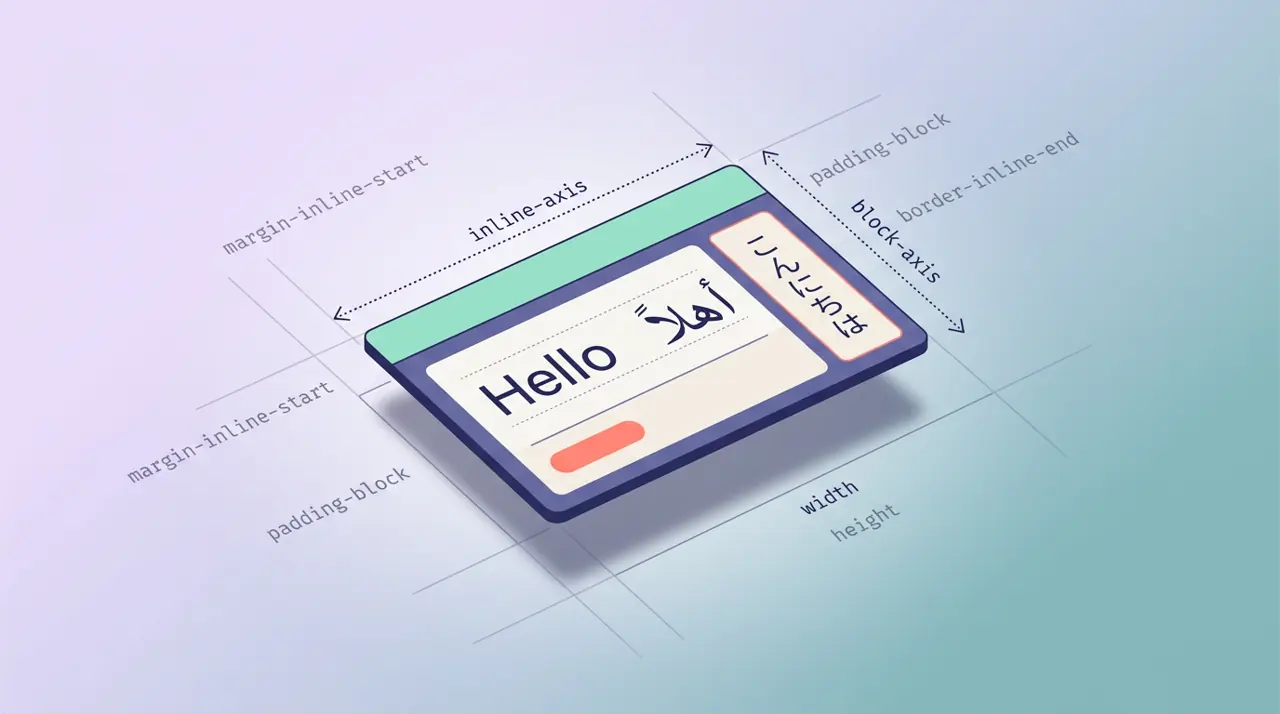
Writing Direction-Agnostic Layouts with CSS Logical Properties
Shipping a dir='rtl' version of a site used to mean mirroring every margin-left and padding-right declaration by hand. Logical properties make direction-awareness the rendering engine's job.
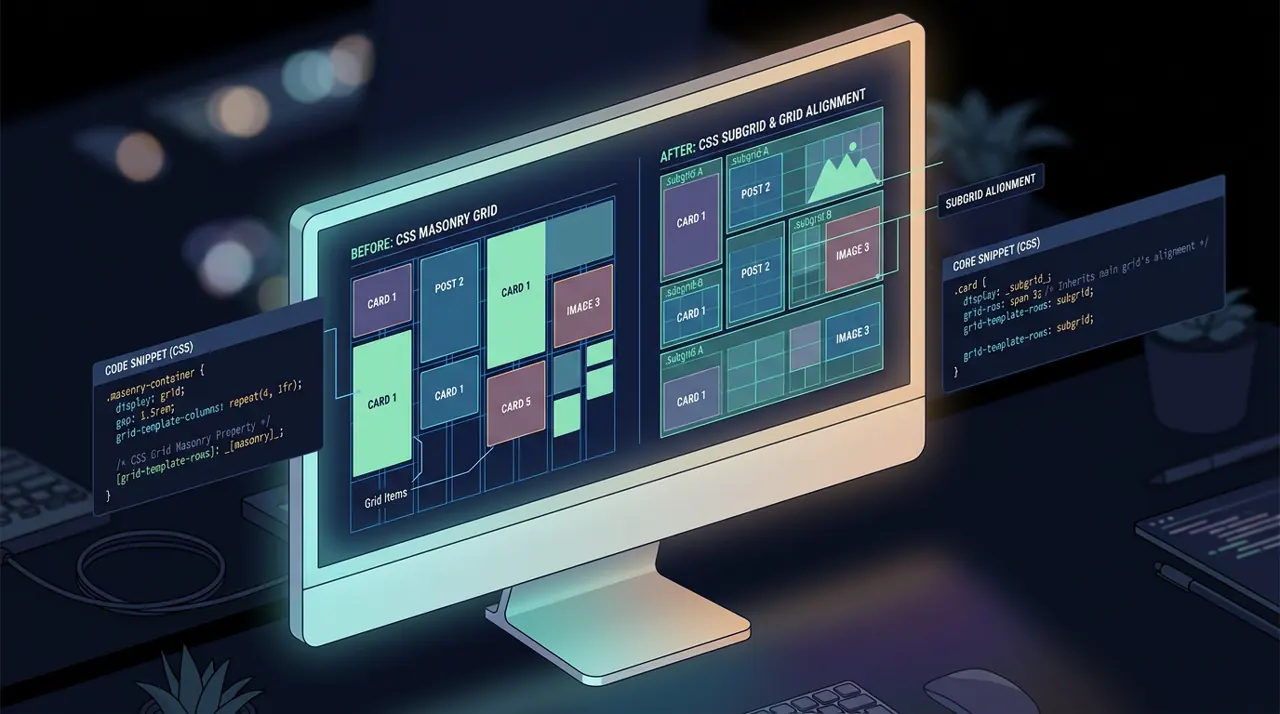
Building Layout Algorithms with subgrid and Masonry
Card headers and footers that refuse to line up across a grid, or a gallery with wildly uneven image heights, need two different layout algorithms. Here's which one solves which problem.
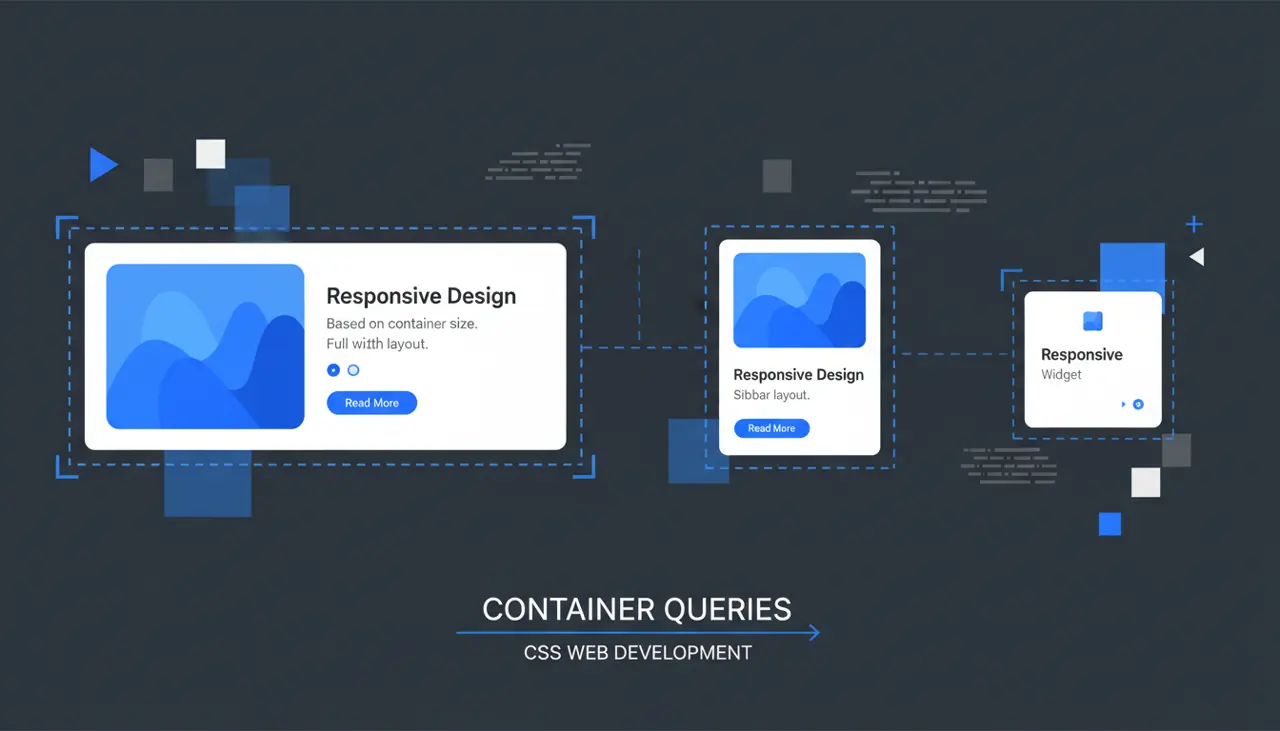
Container Queries in Practice: Contextual Responsive Design
Media queries only ever answer one question: how wide is the browser window? Container queries answer a different one, and it's the one that actually matters for reusable components.