Optimizing LCP with the HTML fetchpriority attribute
Not every image on a page deserves the same loading priority from the browser's default heuristics. Here's when to mark the hero image high, and when deprioritizing the rest helps LCP more.
Paul Radford — Full-Stack Developer & Editor. Paul is a full-stack developer and editor of template.tips. Articles here are AI-drafted and reviewed by Paul, who knows the code well enough to catch what's wrong and cut the hype.

Optimizing LCP with the HTML fetchpriority attribute
The fetchpriority attribute tells the browser which resources to fetch first, overriding its default heuristics for a given <img>, <link>, or <script> element. Set it to high on your Largest Contentful Paint (LCP) candidate, usually a hero image or above-the-fold banner, and the browser bumps that request ahead of others competing for bandwidth. Set it to low on things like below-the-fold carousel images, and you free up capacity for what actually matters. Used sparingly, it is one of the cheapest LCP wins available today.
What fetchpriority actually changes
Browsers already guess at resource priority based on tag type, position in the document, and whether a resource blocks rendering. A <link rel="stylesheet"> in the <head> gets high priority by default. An <img> near the bottom of the page gets a lower one. fetchpriority lets you override that guess with an explicit signal: high, low, or auto (the default, meaning "let the browser decide").
This is not lazy loading, and it is not preload. Those control whether and when a resource enters the download queue. fetchpriority controls where it sits in line once it's already queued. You can combine it with loading="lazy" or with <link rel="preload"> for compounding effects, but they solve different problems.
The attribute is supported in Chrome and Edge since version 101, and in Safari since 17.2. Firefox shipped support in Firefox 132 (November 2024). Check current support on caniuse.com before relying on it as your only optimization lever. Because it's progressive enhancement, browsers that ignore the attribute simply fall back to default heuristics, so there's no functional breakage on older engines.
When should you use fetchpriority="high" on images?
Use it on exactly one thing per page, ideally: the image that renders as your LCP element. This is usually a hero image, a large product photo, or a featured article thumbnail sitting in the first viewport.
1<!-- Hero image is almost certainly the LCP candidate -->2<img3 src="/images/hero-launch.jpg"4 alt="New product launch banner"5 fetchpriority="high"6 width="1600"7 height="900"8>Note the explicit width and height. fetchpriority fixes when the image downloads, not layout stability. Skipping dimensions still gets you a layout shift penalty even if the image loads instantly.
If your hero image also happens to be a background-image in CSS rather than an <img> tag, fetchpriority won't help you directly. CSS background images are discovered late, during style computation, which is exactly why LCP images should usually be real <img> elements or use <link rel="preload" as="image"> if you must keep them in CSS. The web.dev guide to fetch priority covers this discovery-order gap in more detail; it's one of the more common reasons a properly tagged image still doesn't improve LCP scores.
Deprioritizing below-the-fold content
The flip side matters just as much. A carousel with five images, only one of which is visible on load, is a classic case where the browser's default priority is wrong. All five images are <img> tags near the top of the DOM, so the browser may schedule them at similar priority to your hero image, stealing bandwidth from the one resource that actually blocks LCP.
1<section class="hero">2 <img3 src="/images/hero-launch.jpg"4 alt="New product launch banner"5 fetchpriority="high"6 >7</section>89<section class="carousel" aria-label="Featured products">10 <!-- First slide is visible; give it a modest priority -->11 <img src="/images/slide-1.jpg" alt="Product A" fetchpriority="auto" loading="eager">1213 <!-- Everything else is offscreen: lazy-load AND deprioritize -->14 <img src="/images/slide-2.jpg" alt="Product B" fetchpriority="low" loading="lazy">15 <img src="/images/slide-3.jpg" alt="Product C" fetchpriority="low" loading="lazy">16 <img src="/images/slide-4.jpg" alt="Product D" fetchpriority="low" loading="lazy">17 <img src="/images/slide-5.jpg" alt="Product E" fetchpriority="low" loading="lazy">18</section>Pairing fetchpriority="low" with loading="lazy" on slides 2 through 5 is deliberate redundancy: loading="lazy" delays the fetch until the image nears the viewport, and fetchpriority="low" tells the browser not to rush it even then, relative to other in-flight requests. On the first slide, I leave fetchpriority at auto rather than forcing high, because it's visible but it isn't the LCP element, and there's no reason to compete with the hero image for bandwidth.
Does fetchpriority work on scripts and stylesheets too?
Yes, and this is where a lot of teams stop too early, thinking the attribute is image-only. It works on <script> and <link> as well, per the WHATWG HTML spec's fetchpriority definition.
A common pattern: your analytics or A/B testing script is not render-critical, but it sits in the <head> and competes with your critical CSS.
1<head>2 <!-- Critical stylesheet: keep default (high) priority, or make it explicit -->3 <link rel="stylesheet" href="/css/critical.css" fetchpriority="high">45 <!-- Analytics: functionally important but not render-blocking -->6 <script src="/js/analytics.js" defer fetchpriority="low"></script>78 <!-- Preloaded font for the hero heading, marked high because it affects LCP text -->9 <link10 rel="preload"11 href="/fonts/display-bold.woff2"12 as="font"13 type="font/woff2"14 crossorigin15 fetchpriority="high"16 >17</head>The font preload is worth calling out. If your LCP element is a text block (a headline, not an image), the render-blocking resource is the font file, not an image. fetchpriority="high" on that preload can move the needle more than anything you do to images on the page. The MDN fetchpriority reference documents this cross-element behavior clearly, including the fact that the attribute is valid on <link>, <img>, <script>, and via the Fetch API's fetchPriority option on fetch() requests themselves.
The anti-pattern: marking everything high
Here's the part that actually trips people up in production. fetchpriority="high" is not a boost, it's a reordering. If every resource on the page claims high priority, you've told the browser nothing, and it falls back to roughly the same heuristics it would have used anyway, except now you've also added noise that makes the intent of your code harder to read.
I've seen this happen incrementally. A dev adds fetchpriority="high" to the hero image, LCP improves, so they add it to the logo, the nav icons, and three "above the fold" carousel slides "just to be safe." Now there are six high-priority requests fighting over the same limited number of HTTP/2 connections or HTTP/3 streams, and the actual LCP image is back to competing for the front of the queue instead of owning it. Measured LCP often gets worse than before any prioritization was added, because now the browser is juggling contention it didn't have before.
The fix is discipline: one clear fetchpriority="high" per page, reserved for the actual LCP candidate (verified with DevTools, not guessed), and low applied generously to anything genuinely deferred, like below-the-fold images, non-critical third-party scripts, or prefetches for future navigation. Everything else stays at auto and lets the browser's default heuristics do their job, which are already reasonably good.
How to verify it's working
Don't ship this and assume it worked. Open Chrome DevTools, go to the Network panel, and check the Priority column (right-click the column header if it's not visible). Your LCP image should show Highest, and your carousel images should show Low or Lowest. If your hero image still shows High instead of Highest, check that the attribute is spelled correctly and that the element isn't also carrying loading="lazy", which can suppress the priority boost in some browser implementations since a lazy-loaded resource is inherently deferred.
For a page-level view, run Lighthouse or PageSpeed Insights and look specifically at the "Preload Largest Contentful Paint image" and "Reduce initial server response time" audits. A properly prioritized hero image usually shows LCP request start time within the first few hundred milliseconds of navigation start, visible in the Network waterfall as one of the very first rows to begin downloading, rather than being queued behind fonts, scripts, or other images.
If you're using a framework like Next.js, its <Image priority> prop maps directly to fetchpriority="high" under the hood for LCP candidates, so check whether your framework already exposes this before hand-rolling it. Either way, the underlying mechanism is the same standard attribute, and the discipline of using it on exactly one element per page still applies regardless of what abstraction sits on top of it.
Related Articles

The CSS contain Property: Isolating Layout for Performance Wins
On a page with thousands of DOM nodes, a single style change can ripple outward and cost real, measurable render time. Containment scopes that recalculation to one isolated box instead.

The content-visibility Property: Performance Gains for Long Pages
Virtualization libraries unmount off-screen DOM nodes to save render cost, but that breaks Ctrl+F and anchor links. This CSS property defers the rendering cost while keeping both intact.
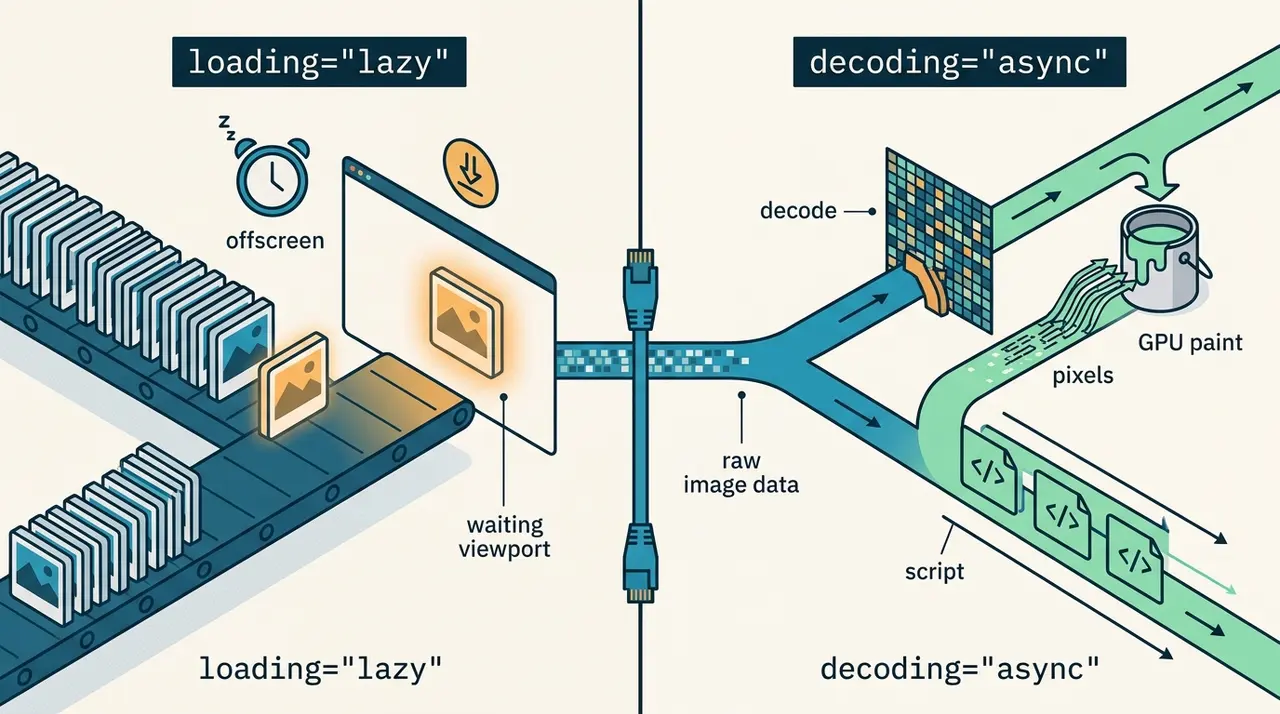
The difference between image loading lazy and decoding async in HTML
Clarifies the distinct performance roles of the loading and decoding attributes on HTML images. Explains when to defer network requests versus when to defer main-thread image decoding.