How to animate elements along an SVG path using CSS offset-path
Explains how to use the CSS Motion Path API to move elements along complex vector paths without JavaScript. Covers responsive path scaling and controlling element rotation along the curve.
Paul Radford — Full-Stack Developer & Editor. Paul is a full-stack developer and editor of template.tips. Articles here are AI-drafted and reviewed by Paul, who knows the code well enough to catch what's wrong and cut the hype.
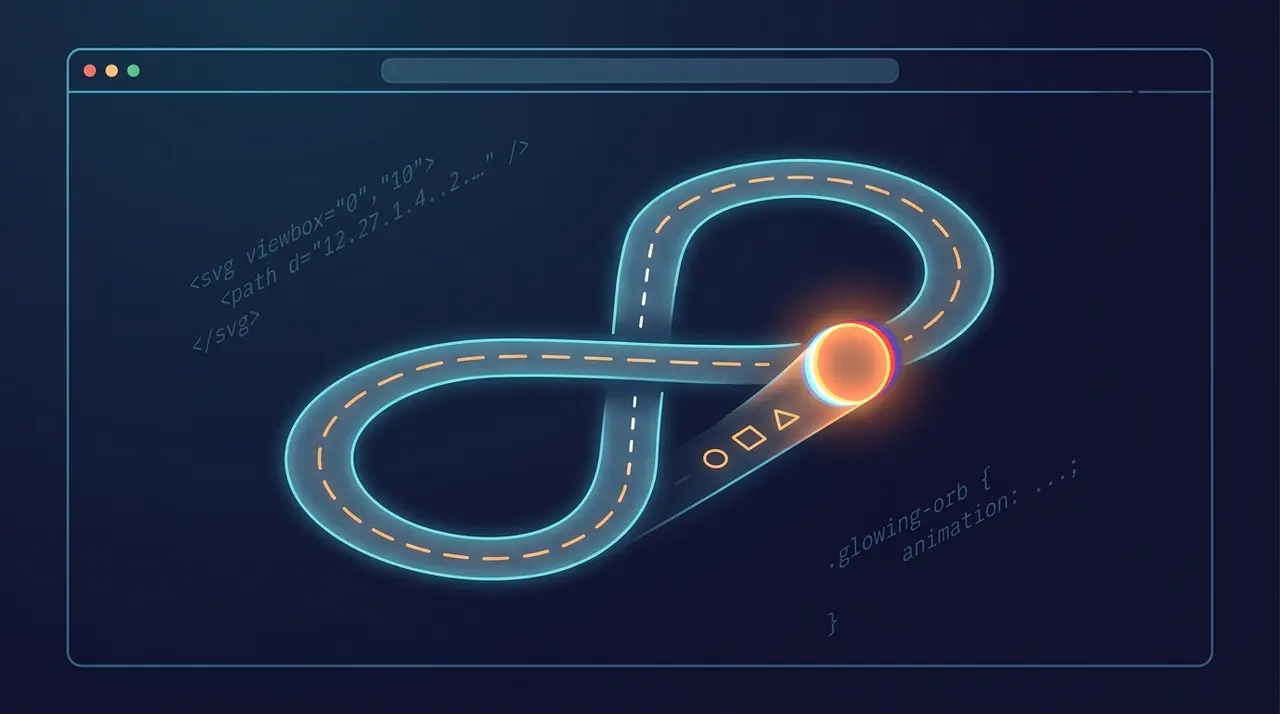
How to animate elements along an SVG path using CSS offset-path
The CSS Motion Path API lets you move an element along an arbitrary vector path, straight line, circle, or hand-drawn SVG curve, using only offset-path and offset-distance. No JavaScript, no requestAnimationFrame loop, no library. It runs on the compositor in most cases, which means smoother motion than a hand-rolled transform animation driven by scroll or timer events, and it works today in every major engine: Chrome, Edge, Firefox, and Safari all ship it.
That's the pitch. The catch is that paths defined with absolute SVG coordinates do not scale the way you expect on a responsive layout, and getting rotation right along a curve takes a bit more than slapping auto on offset-rotate. Let's go through both.
A basic working example
Here's a self-contained example: an icon that travels along an S-curve. This is the kind of thing you'd use for an animated "scroll indicator" or a decorative loading animation.
1<!-- The path element defines the geometry we want to reuse. -->2<!-- It's hidden visually but still parsed for its "d" data. -->3<svg width="0" height="0" style="position:absolute">4 <path5 id="motion-path"6 d="M10,80 C40,10 65,10 95,80 S150,150 190,80"7 fill="none"8 />9</svg>1011<div class="track">12 <div class="runner" aria-hidden="true"></div>13</div>1.track {2 position: relative;3 width: 100%;4 height: 160px;5}67.runner {8 width: 20px;9 height: 20px;10 background: coral;11 border-radius: 50%;1213 /* Point to the path defined in the SVG above. */14 offset-path: path(";M10,80 C40,10 65,10 95,80 S150,150 190,80");1516 /* Keep the element tangent to the curve as it moves. */17 offset-rotate: auto;1819 animation: run-path 4s ease-in-out infinite;20}2122@keyframes run-path {23 from {24 offset-distance: 0%;25 }26 to {27 offset-distance: 100%;28 }29}Two things worth noticing. First, I didn't actually need the <svg> markup at all, since offset-path: path("...") accepts the same d string directly in CSS. I kept the SVG version here because in real projects you usually do want the path visible or reused by multiple elements, and copying the d attribute into CSS is the easiest way to keep them in sync. Second, offset-distance is the property you animate, not offset-path itself. Think of offset-path as the static track and offset-distance as "how far along the track," expressed as a percentage or length.
The MDN overview of the CSS Motion Path module is the best single reference for the full property list: offset-path, offset-distance, offset-rotate, offset-anchor, and the shorthand offset.
How does offset-rotate actually control orientation?
offset-rotate decides which way the element faces as it travels. It takes two kinds of values, and mixing them up is the single most common source of "why is my icon sideways" bugs.
- offset-rotate: auto (or auto 0deg) rotates the element to match the direction of travel. At the top of a loop the element faces up, at the bottom it faces down. This is what you want for anything that should look like it's "following" the path, like an arrow or a character walking a trail.
- offset-rotate: 90deg (a fixed angle) locks the rotation regardless of the path's direction. The element still moves along the curve, but its orientation never changes. Good for a dot, a badge, or a logo that should stay upright.
- offset-rotate: auto 90deg combines both: follow the path's tangent, then add a fixed offset on top. This is useful when your source asset was drawn pointing in the wrong default direction, like an arrow icon drawn pointing right when your path moves it mostly downward.
1/* Arrow icon drawn pointing right by default.2 Path moves generally downward, so we add 90deg3 to correct the icon's "forward" direction. */4.arrow {5 offset-path: path(";M20,20 Q20,120 20,220");6 offset-rotate: auto 90deg;7 offset-distance: 0%;8 animation: travel 3s linear infinite;9}1011@keyframes travel {12 to { offset-distance: 100%; }13}The full value grammar and defaults are documented on the offset-path reference page, including how offset-position and offset-anchor interact with it if you need to change the pivot point of the element rather than its top-left corner.
One real gotcha here: offset-anchor defaults to auto, which usually resolves to the element's center, but if your element has an asymmetric shape (say, a teardrop icon), the rotation will look visually wrong even though the math is correct, because the pivot point isn't where the eye expects it. Set offset-anchor explicitly (e.g. offset-anchor: 50% 80%) when the shape has an obvious "base."
Why does my path break on small screens?
This is the part that bites people in production. offset-path: path("...") works in absolute SVG user-space coordinates. If your path was drawn in a 400x200 viewBox and your container shrinks to 240px wide on mobile, the path does not resize with it. The element will still travel the same 400x200 shape, just positioned relative to the container's top-left corner, which usually means it runs straight off the edge of the screen.
There are three practical ways to deal with this, each with a different cost:
1. Use ray() for simple directional motion. If your "path" is really just a straight line at some angle, offset-path: ray(45deg) describes direction relative to the element's starting position rather than fixed coordinates. It scales naturally because there's no hardcoded coordinate system, just an angle and (optionally) a size. This is the right tool when you don't actually need a curve, you just want something to fly off at an angle, and it sidesteps the whole scaling problem. Browser support for ray() is solid in Chromium and Firefox; check caniuse's motion path table before relying on it in Safari, since ray() support lagged behind basic path() support in WebKit for a while.
2. Scale the SVG coordinate space with CSS, not the path string. Draw your path in a fixed, generous viewBox (say 1000x600), then wrap the animated element and its container in something whose size you control, and apply a CSS transform: scale() to the whole track based on a breakpoint or a CSS variable tied to container width. The path geometry itself never changes, you're just scaling the rendered result.
1.track {2 /* Base design size the path was authored at. */3 width: 1000px;4 height: 600px;5 transform-origin: top left;6}78@media (max-width: 768px) {9 .track {10 transform: scale(0.4);11 }12}1314@media (max-width: 480px) {15 .track {16 transform: scale(0.24);17 }18}This works but it's a blunt instrument. Discrete breakpoints mean visible jumps in scale rather than smooth resizing, and you'll need to account for the scaled box's actual rendered footprint when it sits inside a fluid layout (transformed elements keep their original layout size for flow purposes, only their painted box changes).
3. Use percentage-based coordinates via a viewBox and offset-path: path() combined with CSS container queries or clamp()-driven custom properties for a near-continuous scale. This is more setup but avoids the breakpoint snapping problem. You compute a scale factor as a CSS custom property using clamp() against the viewport or container width, then apply it as transform: scale(var(--path-scale)). It's more math up front but gives you fluid scaling instead of steps.
My honest recommendation: if the path is decorative and the exact shape doesn't matter much at small sizes, go with ray() or simplify to a CSS transform keyframe animation instead of motion path entirely. If the path's exact curvature is the whole point (an animated signature, a route on a map, a drawn underline), draw it at a fixed authored size and scale the container, accepting breakpoint jumps as the tradeoff for keeping the shape faithful.
Performance and accessibility notes
Motion path animations are generally cheap because browsers can run them on the compositor thread when only offset-distance and offset-rotate are animating and no layout-affecting property is involved. That said, if the animated element has will-change set carelessly on many elements at once, you'll burn more memory than you save in smoothness. Apply will-change: offset-distance sparingly, only on elements that are actually mid-animation, not as a blanket rule.
Also don't forget motion sensitivity. An element looping along a wavy path indefinitely is exactly the kind of animation that prefers-reduced-motion guidance exists for. Wrap the animation:
1@media (prefers-reduced-motion: reduce) {2 .runner {3 animation: none;4 offset-distance: 50%; /* park it at a sensible resting point */5 }6}Skipping this is a real accessibility miss, not a nice-to-have. Vestibular disorders are common enough that an infinitely looping path animation on a marketing page is a legitimate complaint, not an edge case.
When not to reach for this
If you just need an element to move from point A to point B in a straight line or along a simple arc, a plain transform: translate() keyframe animation is simpler to reason about, easier to debug in DevTools, and doesn't require you to think about SVG path syntax at all. Motion path earns its complexity when the path is genuinely irregular, something you'd struggle to approximate with a handful of transform keyframes: a wavy line, a loop, a route that traces a specific shape. For anything simpler, motion path is a neat trick that adds indirection without adding value.
Verifying it works across browsers
Before shipping, check three things manually: that offset-rotate: auto points the element the way you expect at the path's steepest curve (not just the start and end), that the animation actually degrades under prefers-reduced-motion in your OS settings (not just in a media query you assume is correct), and that resizing the browser window doesn't send the element off-screen on a path you scaled with ray() or breakpoint transforms. DevTools in Chrome and Firefox will let you pause the animation mid-frame and inspect the computed offset-distance, which is the fastest way to confirm the math lines up with what you see. If you support Safari, test there specifically for ray(), since WebKit's rollout of the full Motion Path spec came later than Chromium's and Firefox's.
Related Articles

Animating to height auto using CSS interpolate-size
height: auto was never a number the browser could interpolate toward, which is exactly why it never animated at all. These two features finally give the engine something concrete to target.
clip-path and mask: Advanced Shape Techniques for the Modern Web
Both properties hide part of an element without any extra markup, but clip-path is strictly binary while mask is a full grayscale operation. Here's which one fits which visual effect.

CSS animation-composition: Controlling Layer Merge Behavior
A hover-triggered scale pulse used to kill a continuous background rotation animation outright the instant it started. This property lets both effects combine instead of one overriding the other.