Creating Glass Effects with backdrop-filter: From Blur to Frosted Glass
filter blurs an element's own contents, including any text sitting on top of it. backdrop-filter blurs only what's behind the element, the exact distinction that makes glassmorphism work at all.
Paul Radford — Full-Stack Developer & Editor. Paul is a full-stack developer and editor of template.tips. Articles here are AI-drafted and reviewed by Paul, who knows the code well enough to catch what's wrong and cut the hype.
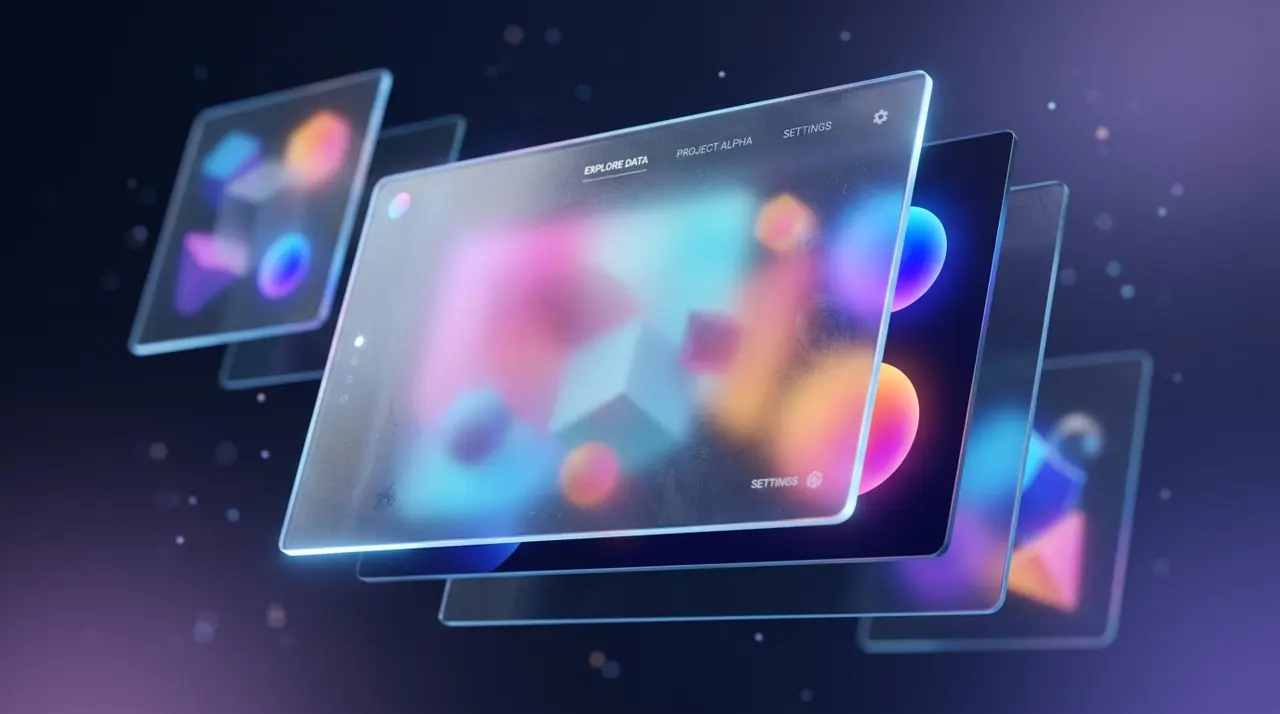
The backdrop-filter CSS property applies graphical effects, most commonly blur, to the area behind an element rather than to the element itself. Combine a semi-transparent background color with backdrop-filter: blur() and you get the frosted glass look used in macOS, iOS, and most modern design systems.
Why not just use filter instead?
This is the first mistake most people make. filter blurs the element and its contents. backdrop-filter blurs whatever is behind the element, leaving the element's own content sharp. If you want readable text sitting on top of a blurred photo, filter will blur your text too. backdrop-filter will not.
1/* filter: blurs the card AND its text */2.card-wrong {3 background: rgba(255, 255, 255, 0.2);4 filter: blur(10px); /* text becomes unreadable */5}67/* backdrop-filter: blurs only what's behind the card */8.card-correct {9 background: rgba(255, 255, 255, 0.2);10 backdrop-filter: blur(10px); /* text stays sharp */11 -webkit-backdrop-filter: blur(10px); /* Safari still needs the prefix */12}That prefix is not decorative legacy cruft. Safari has supported backdrop-filter since Safari 9 on macOS and Safari 18 on iOS unprefixed as of late 2024, but plenty of production sites still ship the -webkit- prefix because older Safari versions in the wild require it. Check current numbers on caniuse before you drop it.
Building a basic frosted glass card
The recipe has three ingredients: a translucent background, the blur itself, and usually a subtle border to sell the "pane of glass" illusion. Without the border, the effect often looks like a smudge rather than glass.
1.glass-card {2 /* translucent background lets the blurred backdrop show through */3 background: rgba(255, 255, 255, 0.15);45 /* the actual glass effect */6 backdrop-filter: blur(16px) saturate(180%);7 -webkit-backdrop-filter: blur(16px) saturate(180%);89 /* border sells the "pane of glass" edge */10 border: 1px solid rgba(255, 255, 255, 0.3);11 border-radius: 16px;1213 /* soft shadow adds depth without heavy contrast */14 box-shadow: 0 8px 32px rgba(0, 0, 0, 0.1);1516 padding: 24px;17}The saturate(180%) addition is not cosmetic filler. Blurring alone tends to wash out colors underneath, so bumping saturation compensates and keeps the backdrop looking vivid instead of gray and muddy. This is the same trick Apple's own design guidance uses in its vibrancy materials.
What background color actually works behind glass?
This trips people up constantly. backdrop-filter needs something visually busy behind it to look convincing. A flat gray page background blurred is still just flat gray. You need a gradient, photo, or pattern with enough contrast that the blur has something to smear.
1body {2 /* a gradient or image gives the blur something to work with */3 background: linear-gradient(135deg, #667eea 0%, #764ba2 50%, #f093fb 100%);4 background-attachment: fixed;5 min-height: 100vh;6}If your product has a plain white or single-color background, skip glass effects entirely. You will spend more time faking texture behind the card than you would spend on a simpler shadow-and-border treatment, and the result rarely justifies the effort.
Layering multiple filter functions
backdrop-filter accepts a space-separated list of filter functions, same syntax as filter. Stacking them lets you build more specific moods: a cold, clinical glass versus a warm, hazy one.
1/* cold, high-contrast glass, good for dashboards */2.glass-cold {3 backdrop-filter: blur(20px) contrast(120%) brightness(1.1);4 -webkit-backdrop-filter: blur(20px) contrast(120%) brightness(1.1);5 background: rgba(255, 255, 255, 0.08);6}78/* warm, hazy glass, good for marketing hero sections */9.glass-warm {10 backdrop-filter: blur(24px) saturate(160%) sepia(10%);11 -webkit-backdrop-filter: blur(24px) saturate(160%) sepia(10%);12 background: rgba(255, 250, 240, 0.15);13}Order matters slightly less than with filter chains on elements with complex content, but it is still evaluated left to right, so put blur first if you want later saturation or contrast adjustments to act on the already-blurred result.
The performance cost nobody mentions
Every backdrop-filter element forces the browser to composite a blurred snapshot of everything behind it, live, on every frame it changes. On a static card this costs almost nothing. On a sticky navbar that stays fixed while the page scrolls behind it, the browser has to re-render the blur constantly as new content passes underneath.
I have seen scroll jank appear specifically on lower-powered Android devices and older Intel-integrated-graphics laptops when a full-width sticky header uses backdrop-filter: blur(20px) over a page full of images. The fix is not to promise will-change: backdrop-filter and hope; that property doesn't meaningfully help here. Instead, reduce the blur radius (10px costs noticeably less than 30px), limit the blurred element's width if possible, or fall back to a solid, non-blurred background on prefers-reduced-motion and lower-end devices via a feature test.
1/* graceful fallback for browsers or contexts that can't handle it well */2.navbar {3 background: rgba(20, 20, 20, 0.85); /* solid-ish fallback */4}56@supports (backdrop-filter: blur(1px)) or (-webkit-backdrop-filter: blur(1px)) {7 .navbar {8 background: rgba(20, 20, 20, 0.5);9 backdrop-filter: blur(20px);10 -webkit-backdrop-filter: blur(20px);11 }12}Wrapping the effect in @supports is the pattern the MDN documentation recommends, and it means users on browsers without support simply get a more opaque solid background instead of a broken, see-through mess.
Firefox, and other support gaps worth knowing
Firefox shipped unprefixed backdrop-filter support starting in Firefox 103 (2022), so this is no longer the gap it used to be. The bigger nuance today is print stylesheets and PDF rendering: some browser print engines ignore backdrop-filter entirely, silently rendering the element as fully opaque or fully transparent depending on the background color you set. If your glass-effect component might ever be printed (order confirmations, invoices, dashboards users export to PDF), test that path specifically rather than assuming screen behavior carries over.
Another gap: backdrop-filter does not apply inside an iframe boundary looking outward, and it interacts unpredictably with overflow: hidden combined with transform on ancestor elements in a few older WebKit builds, occasionally causing the blur to clip incorrectly or disappear on scroll. If you see a glass panel randomly go flat transparent on Safari during a scroll or transform animation, check whether an ancestor has both overflow: hidden and a transform set, that combination is the usual culprit.
Testing your glass effect properly
Do not just check that it looks right in Chrome at 100% zoom. Run through this sequence before shipping:
Open the component in Safari specifically, since it has the longest history of prefix quirks and the most idiosyncratic compositing behavior for backdrop effects. Then throttle CPU in Chrome DevTools (Performance tab, CPU 4x slowdown) and scroll past the element to feel whether the blur causes frame drops. Then resize the browser to a narrow mobile viewport, because blur radius that looks subtle at 1440px wide can look heavy-handed or pixelated at 375px. Finally, toggle your OS's reduced-transparency accessibility setting (macOS: Accessibility > Display > Reduce Transparency) and confirm your @supports fallback or a prefers-reduced-transparency media feature isn't leaving low-vision users with an unreadable, half-blurred mess.
The CSS Filter Effects spec defines backdrop-filter alongside regular filters, and it is worth skimming once if you plan to use more exotic filter functions like hue-rotate or drop-shadow in your glass compositions, since a few of them behave differently when applied to a live backdrop versus a static element. Glass effects read as polished when used sparingly on two or three key surfaces per screen. Applied everywhere, they read as noise, and they cost real render time you'll eventually have to account for.
Related Articles
clip-path and mask: Advanced Shape Techniques for the Modern Web
Both properties hide part of an element without any extra markup, but clip-path is strictly binary while mask is a full grayscale operation. Here's which one fits which visual effect.
Modern Scrollbar Styling: Beyond the Browser Defaults
A decade of WebKit-only scrollbar CSS did absolutely nothing in Firefox, which shipped its own answer years earlier. Chrome and Safari finally caught up to the standard properties in 2024.
How to animate elements along an SVG path using CSS offset-path
Explains how to use the CSS Motion Path API to move elements along complex vector paths without JavaScript. Covers responsive path scaling and controlling element rotation along the curve.